


Remote Control for RokuTV
4.24.53K Reviews
App Specs
- Version
- 1.4.6
- Updated On
- License
- Free
- Downloads
- 5,000,000+
- Developer
- EVOLLY.APP
- Categories
- Tools
- Platform
- Android
Screenshots
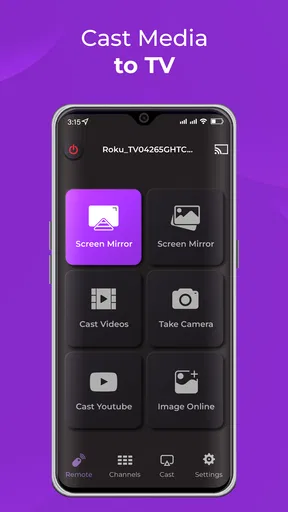
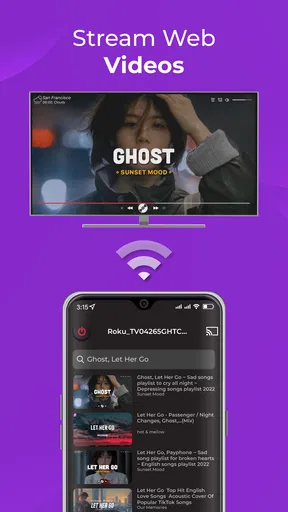
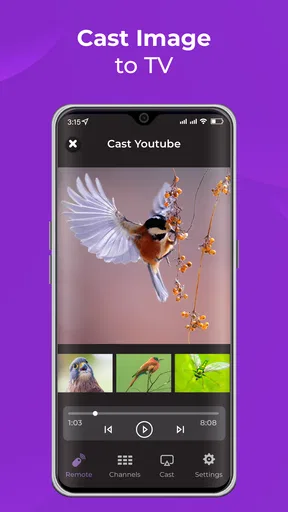
 Analysis by AppCompare
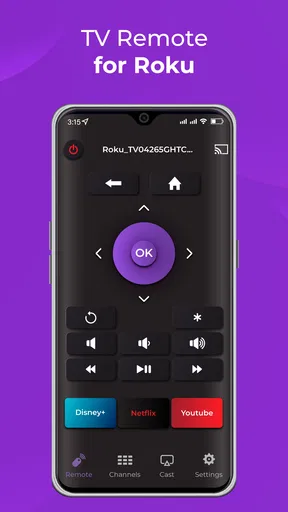
I like phone remotes most when they solve a small, familiar problem without making me rethink how I use the TV. Remote Control for RokuTV is built around that simple idea: use your phone to control a Roku device when the physical remote is out of reach. That focus makes it easy to understand, though it also means the app is most useful when your phone and Roku are already set up to work together.
Using a phone as the Roku remote
The main appeal is having familiar playback and navigation controls on a device I’m likely to have nearby. For a quick pause, a change of direction in a menu, or a search, reaching for my phone can be easier than getting up to look under a cushion. The app is a free tools app from EVOLLY.APP, and its straightforward purpose is a better fit for everyday convenience than for anyone looking for a more elaborate TV-management system.
It is also worth being clear about the role it plays: this is a remote-control companion, not a replacement for every part of the Roku experience. I would keep the physical remote available when setting up a device, troubleshooting the home network, or dealing with a phone that is low on battery. The app is most valuable as a handy second way to interact with a Roku, rather than as a reason to put the original remote away permanently.
Getting Started with Remote Control for RokuTV
You know that feeling when you download a new app and you’re hit with a barrage of setups and instructions? Thankfully, this app skips the drama. Setting up the Remote Control for RokuTV is as simple as it gets. Once you’ve installed it from the App Store or Google Play, it automatically detects your Roku device as long as your phone is connected to the same Wi-Fi network. No need for pairing codes or long-winded setup processes.
That same-network requirement is the first thing I would check if the TV does not appear. Confirm that the phone is using the home Wi-Fi you expect, rather than mobile data or a guest network. If you have more than one Roku device, take a moment to identify the right one before tapping controls; that small check can save you from wondering why the wrong screen is responding. This is a practical detail that matters more than any flashy feature: discovery depends on the devices being able to find each other on the local network.
For people who share a home, a phone remote can be particularly useful as a backup rather than a personal replacement. A family member can use their own phone when the usual remote is missing, while the physical remote remains available to everyone. That arrangement works best when each person knows which Roku is selected and understands that the phone needs the appropriate network connection. It avoids turning one person’s phone into the household’s only way to control the TV.
Features That Make Life Easier
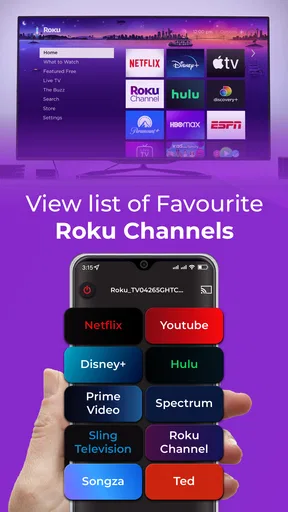
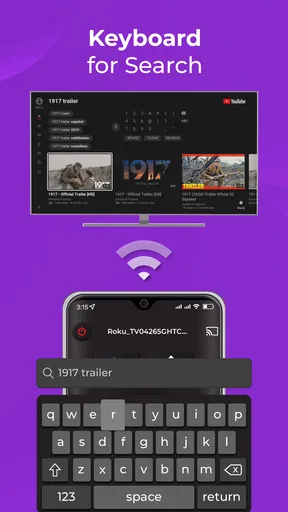
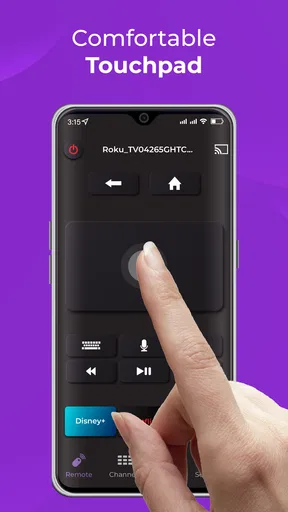
So, what does this app bring to the table? For starters, the interface is super intuitive. It feels like you’re using the actual Roku remote, but with a few extra perks. You’ve got all the standard buttons: play, pause, fast forward, and rewind. But the app also offers a nifty keyboard feature, which is a lifesaver when you’re typing in those long, annoying passwords or searching for your favorite shows. No more scrolling through the alphabet one letter at a time!
Worth Reading Before You Choose

EA SPORTS FC Mobile 26 Is a Bigger Football Game, but It Takes Time

Flipboard Shows What News Apps Must Do Beyond the Feed

Switching to Android Auto Means Rethinking Your Driving Routine

Google Calendar Makes a Crowded Week Easier to Manage

Ludo King Makes the Most of the Minutes Between Plans

Baby Panda World Brings Quick Play to Modern Phones, but Its Game Library Feels Busy
The keyboard is the feature I would reach for when entering text is the job, not when browsing a row of pictures or moving through a screen one selection at a time. A phone keyboard makes a password or title search less tedious, but it does not change how the TV’s on-screen menus are organized. My useful habit would be to switch to it for text entry, then return to the directional controls for choosing results. That keeps the phone’s advantage focused where it is strongest.
Another cool feature is the voice control. Just tap the mic button and speak into your phone. Whether you’re searching for a movie or opening an app, it’s all hands-free. Plus, the app allows you to use your phone’s volume buttons to control the TV’s volume. It’s like magic, but real!
Voice input is most appealing when I already know what I want to search for and would rather say it than type it. In a quiet room, that can feel natural; around other people, or when I am not sure of a title, typing may be the more comfortable option. The phone’s volume buttons offer another shortcut, but I would treat that as an alternate control rather than assume it will suit everyone’s habits. The benefit is fewer taps for a simple adjustment; the trade-off is that it asks me to use a phone control in a way that may feel different from pressing a dedicated remote button.
Compatibility and Performance
Talking compatibility, this app plays well with all Roku devices, from the classic Roku streaming stick to the latest Roku TVs. I've tried it on multiple devices and, trust me, it seamlessly adapts every time. The response time is almost instant, so you won’t be waiting around for your command to register.
Running the app is smooth sailing. I’ve yet to encounter any glitches or bugs, which is a huge relief, especially when you’re in the middle of a binge-watch session. It’s like the app just gets me and my need for uninterrupted streaming.
In ordinary use, the practical test is not only whether a button responds, but whether the whole chain is convenient: the phone is nearby, the correct Roku is reachable over Wi-Fi, and the screen is awake enough for the command to matter. If one of those pieces is missing, a phone remote can feel less dependable than a physical remote that is already paired. I would not judge the app solely by a single failed connection; I would first check the network and selected device, then decide whether the issue is a temporary setup mismatch or a reason to use the original remote.
A realistic example is starting a show after dinner, then realizing the remote has slipped behind the sofa. If my phone is already on the same Wi-Fi, I can use the app to pause, resume, navigate, or enter a search without interrupting everyone to hunt for the remote. If the phone is across the room, nearly out of charge, or connected to a different network, the convenience advantage shrinks quickly. That is why I see it as a useful backup that works best when the phone is already part of the evening routine.
Why It Stands Out
What really sets this app apart is its reliability. I’ve used other remote apps before, and let’s just say they didn’t quite deliver. Whether it was laggy connections or random disconnections, those apps just didn’t cut it. But with the Remote Control for RokuTV, it’s all about consistency and ease of use.
Compared with a basic physical Roku remote, the phone version’s clearest advantage is text entry: tapping on a phone keyboard can be much faster than navigating an on-screen alphabet. A physical remote still has its own strengths. It is ready to grab, does not depend on the phone being charged, and leaves the phone free for other things. Compared with a general-purpose universal remote, this app is appealing when the Roku is the device I want to control and I do not want another piece of hardware. If I need to control equipment beyond Roku, a dedicated universal remote may be the more sensible choice.
Also, consider the sheer convenience. I mean, our phones are practically glued to our hands anyway, right? Having your remote on your phone just makes sense. It’s like having a universal remote that’s always with you, without the hassle of juggling multiple devices.
There is a small but important distinction between “always with me” and “always ready.” A phone can be occupied by a call, a message, or another task, and handing it to someone else to control the TV may not be ideal. For a solo viewer, that is rarely a big deal; in a shared room, keeping the regular remote on the coffee table can make more sense. I would use the app to remove friction when it helps, not insist that every household member change their preferred way to control the TV.
Who benefits most, and where it falls short
The app makes the most sense for someone who watches Roku regularly, keeps a phone close by, and often types searches or account passwords. It is also a useful option in a home where the physical remote sometimes goes missing or where a visitor needs a quick way to navigate. The current version is 1.4.5, and it supports Android 6.0 and later. It has an Everyone content rating, an average rating of 4.2 from around 73,000 ratings, and more than 5 million installs. Those figures suggest that the idea has broad appeal, though they do not tell me whether it will match every home’s network setup or control preferences.
I would skip it if I want a phone remote that works independently of the home network, if I rarely have my phone nearby, or if the physical remote already does everything I need without friction. It is also not the best answer when I need a universal controller for several types of devices. In those situations, the original remote or a purpose-built universal remote may be simpler. The app’s value is specifically in making Roku control available through a phone, not in replacing every remote-control option.
One question I would ask before relying on it is whether it can find the Roku in the room where I actually watch. The simplest check is to install it while the phone is on the same Wi-Fi network as the device and confirm that the intended Roku appears. If the household uses separate networks, guest access, or more than one Roku, checking the selected device and connection first is more useful than repeatedly tapping buttons. For a home with one Roku and one shared network, the setup described here is likely to feel much more direct.
Another practical consideration is cost. The app is free to install, with in-app purchases ranging from $3.49 to $32.99 per item. I would start by deciding whether the basic remote controls solve my actual problem before spending on anything. A person who only wants a backup for navigation and playback may have a different threshold from someone who expects to use the app often. Thinking about that distinction up front helps keep a convenient tool from becoming an unnecessary purchase.
Final Thoughts
In a world where convenience is king, the Remote Control for RokuTV app is a must-have for anyone who owns a Roku device. It’s user-friendly, packed with handy features, and most importantly, reliable. Whether you’re a techie or just someone who loves a good movie night, this app is worth checking out.
So next time you’re about to embark on a remote hunt, remember there’s an easier way. Head over to your app store, download the Remote Control for RokuTV, and thank me later. Happy streaming!
Pros
- Easy setup and user-friendly interface.
- Supports voice commands for convenience.
- Customizable remote layout options.
- Compatible with multiple Roku devices.
- Quick response time with minimal lag.
Cons
- Ads can be intrusive during use.
- Requires in-app purchases for premium features.
- Limited functionality without Wi-Fi.
- May drain battery quickly on older devices.
- Not all Roku models supported.
FAQs for Remote Control for RokuTV
What are the main features of the Remote Control for RokuTV app?
The Remote Control for RokuTV app allows users to easily navigate their Roku-enabled devices using their smartphone or tablet. Key features include a user-friendly interface, voice search capabilities, and a virtual keyboard for text input. It also supports multiple Roku devices, enabling seamless switching between them.
Is the Remote Control for RokuTV app free to use?
Yes, the Remote Control for RokuTV app is free to download and use. However, it may offer in-app purchases or premium features that enhance functionality. These could include removing ads, unlocking advanced remote control functions, or gaining access to additional customization options.
Is the app compatible with all Roku devices?
The app is compatible with most Roku streaming players and Roku TVs. However, it’s essential to verify compatibility with your specific device model before downloading. Compatibility information is usually available on the app's download page or the developer's website, ensuring a seamless experience.
What permissions does the Remote Control for RokuTV app require?
The app typically requires access to your device's Wi-Fi network to connect with Roku devices. It may also request permissions for microphone access if it includes voice search capabilities. It's important to review these permissions to ensure they align with your privacy preferences.
Can the app be used on both Android and iOS devices?
Yes, the Remote Control for RokuTV app is available for both Android and iOS devices. Users can download it from the Google Play Store for Android devices or the Apple App Store for iOS devices, ensuring compatibility with a wide range of smartphones and tablets.


